4.16 Case Management
The Cases feature in MalChela v4.0 introduces a structured way to manage analysis sessions, organize tool results, and preserve analyst notes for long-term reference. Each case acts as a container for a specific file or folder input, and captures relevant metadata, tool output, and custom annotations.
Cases are managed entirely through the web interface.
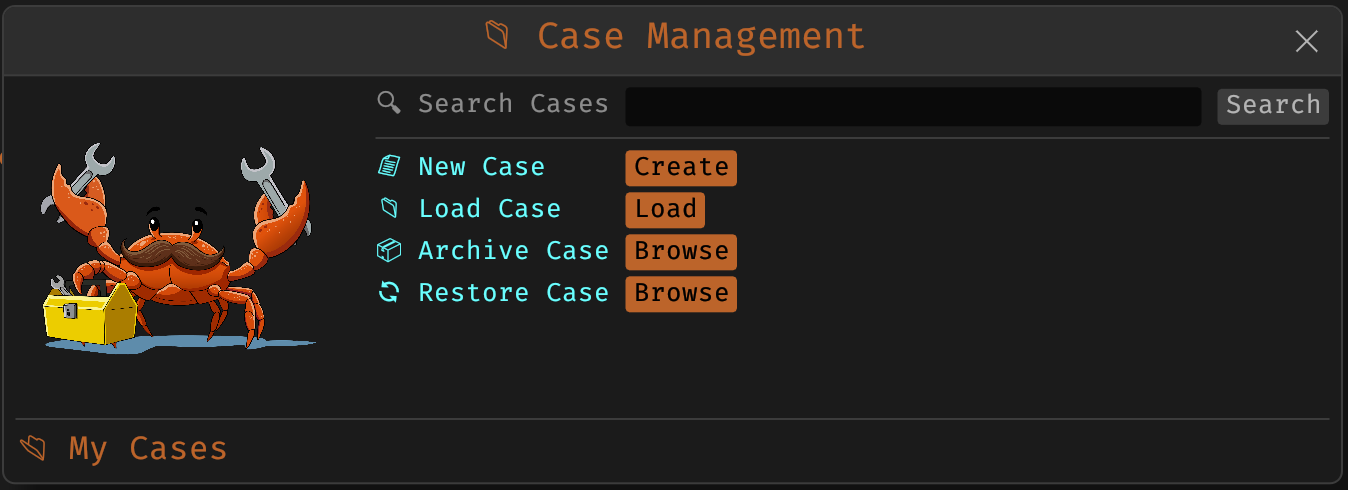
Case Management
Creating a Case
A case can be created from the New Case menu, or by selecting 'Save to Case' in any tool.

New Case
After choosing the input, assign a descriptive case name. The web interface will automatically create a new folder under:
saved_output/cases/<case_name>/
When a folder is used as the case input, FileMiner runs automatically and populates an interactive results table. Suggested tools can be launched on a per-file basis directly from the FileMiner results panel.
Case Contents
Each case folder includes:
case.yaml— combines metadata, case tracking, and user notes in a single structured filefileminer/,mstrings/,tiquery/, etc. — tool-specific output directories
Notes & Tagging
The Notebook allows users to record notes, label items with tags, and track investigative context across sessions.
- Notes can include plain text, YAML fragments, or markdown.
Tagging
- Tags appear in the Workspace panel under the current case.
- Tags help organize and filter case context.
Search
From the Case modal, you can search across:
- All saved tool outputs
- Notes contents
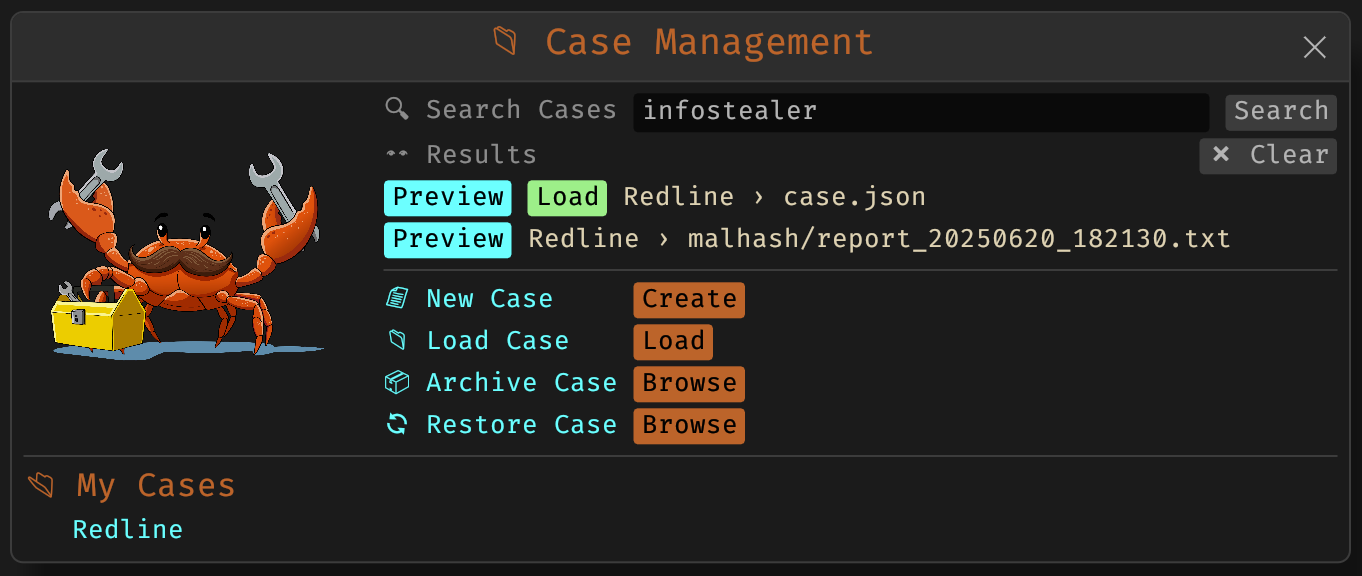
Searching Cases
Archiving Cases
Cases can be archived into a .zip file using the web interface's Archive Case feature. This creates a portable snapshot that includes all metadata, notes, and tool outputs.
Archives are saved to:
saved_output/case_archives/
Importing Cases
To restore a previously archived case:
- Open the web interface
- Use Import Case
- Select a
.ziparchive fromsaved_output/case_archives/(or provide the full path to any valid case archive)
The case will be extracted into saved_output/cases/ and appear in the workspace. If a case with the same name already exists, you will be prompted to confirm overwrite.
Summary
Cases enable consistent, organized forensic workflows across sessions and machines. Whether you're triaging suspicious files, running multi-tool pipelines, or preserving findings for reporting, the Cases feature ensures nothing is lost.